

What a connected browser can do
1. Save a window as a session
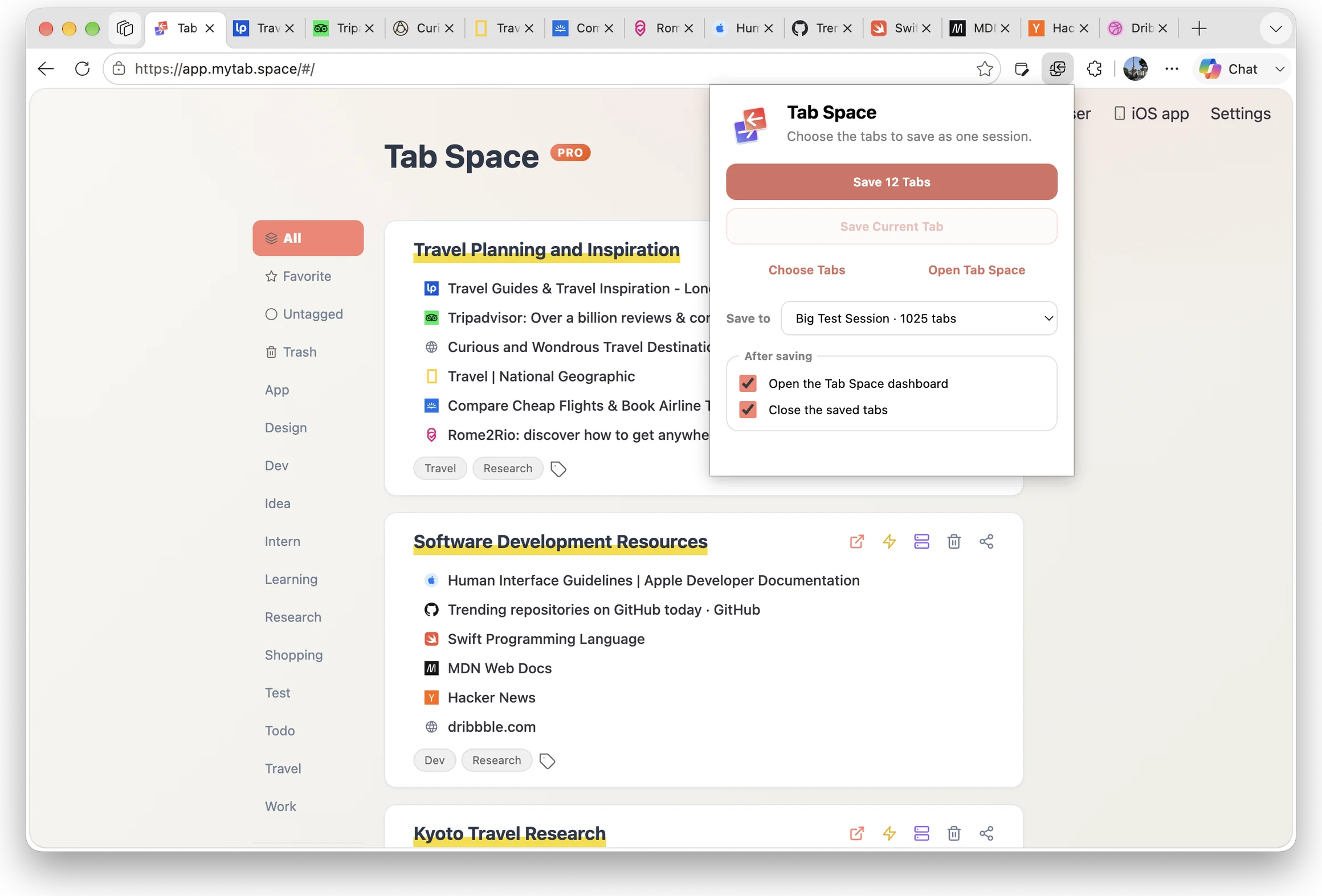
Click Tab Space in the browser toolbar and the open tabs become one named session. The tabs are closed only after the Mac app confirms the session was written.
2. Reopen it anywhere
A session is not owned by the browser that saved it. Open a session saved in Firefox back into Chrome, into Safari, or on your iPhone.
3. Search every browser at once
Press Option-Tab anywhere on the Mac. The switcher lists open tabs from each connected browser alongside your saved sessions, and brings the exact window and tab forward.
4. Keep one durable library
Titles, tags, and notes stay with the session. Automatic snapshots, iCloud sync, and export as Text, Markdown, HTML, or a complete backup apply to every browser alike.
See how the Option-Tab switcher works →
Library access for everyone; tab collection and live-tab switching with Pro
Because it is beta, please report anything that misbehaves to [email protected] — reports go straight to the developer.
Set it up in three steps
What you need
- Tab Space 4.3 or later for Mac (macOS 14 or later), launched at least once.
- No Pro subscription is needed to pair and access your library. Saving tabs from other browsers and live-tab switching require Pro.
- Google Chrome, Microsoft Edge, or Firefox 121 or later on the same Mac.
Step 1 — Install the extension
Chrome
Install Tab Space from the Chrome Web Store. Other Chromium-based browsers that support Chrome Web Store extensions can install Tab Space from the same listing.
Microsoft Edge
Install Tab Space from Microsoft Edge Add-ons.
Firefox
Install Tab Space from Firefox Add-ons. Firefox 121 or later is required.
Step 2 — Open Tab Space on your Mac
Opening the app registers a small background helper as a login item. If macOS asks for approval, enable Tab Space Helper in System Settings → General → Login Items. After that, the Mac app does not have to stay open — the helper keeps working in the background.
Step 3 — Allow the browser
- Click the Tab Space icon in the browser toolbar.
- On your Mac, Tab Space asks whether to allow that browser to use Tab Space. Click Allow.
That is the whole setup. The browser can now save its open tabs into Tab Space and restore any saved session. Repeat steps 1 and 3 for each additional browser.
No prompt — for example, when you reach the Mac over screen sharing? Click Use a pairing code in the extension, then click Multi-Browser Support… in the Tab Space main window and enter the six-digit code it shows. The code is single use and changes after a browser connects.
Keep the browsers. Share the library.
Download Tab Space free for Mac. No Tab Space account required.